

The Maximum groups per product setting controls how many groups the same Shopify product can belong to.
You can set a limit from 1 to 7 in Settings > Product groups > Limits.
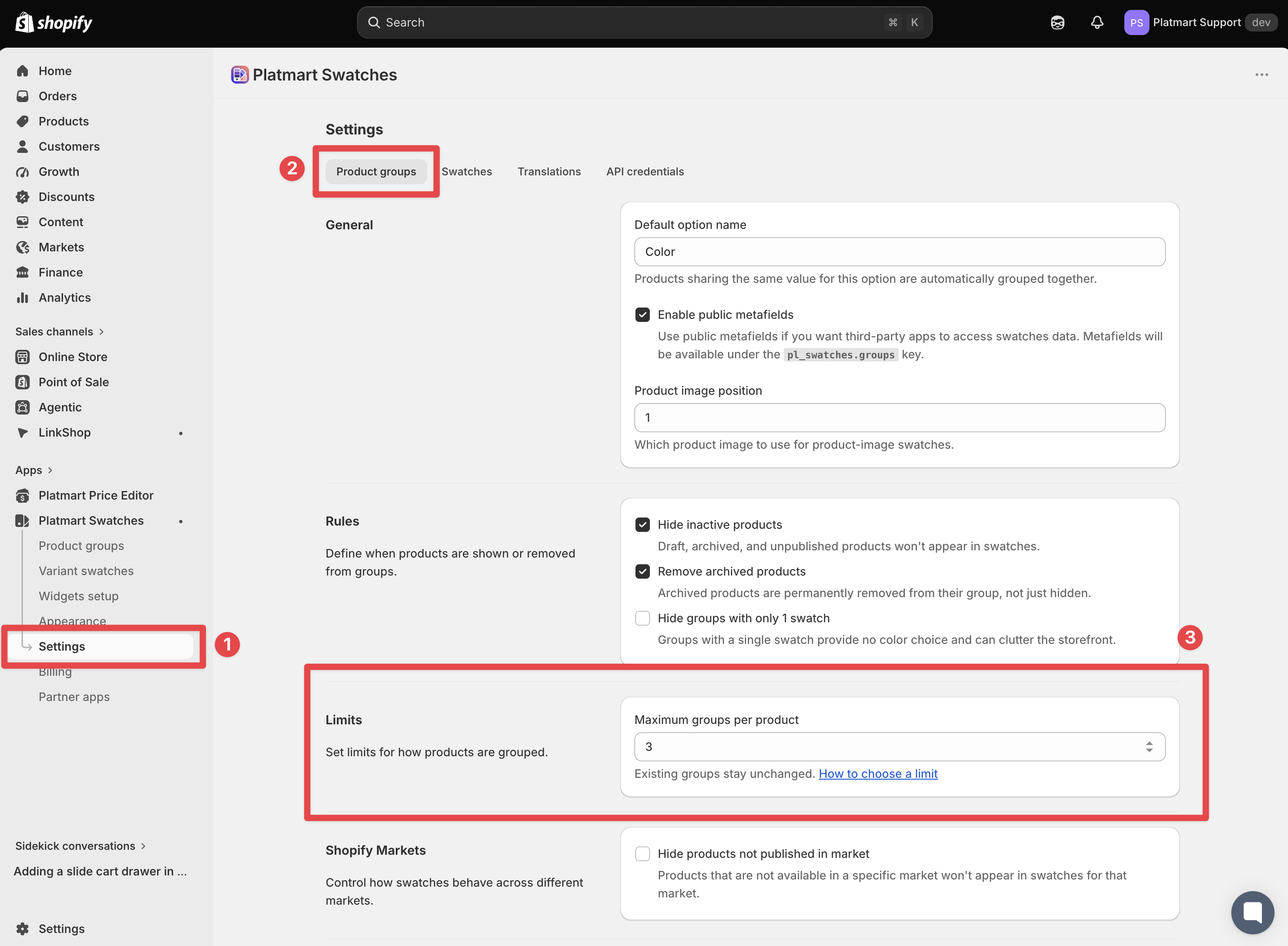
Choose a limit
1 group per product, recommended for most stores. This prevents the same product from being added to several groups by mistake.
2 or more groups per product. Choose a higher limit only when you intentionally need the same product in several separate groups.
Adding the same product to several groups can display more swatch rows on its product page. Too many rows can make it harder for shoppers to compare options.
Using linked and multi-option groups
You can use linked groups and multi-option groups with a limit of 1 group per product, so you don’t need a higher limit to show several swatch rows.
Multi-option groups: Adding options doesn’t create additional groups.
Linked groups: Linking groups shows their swatches together without adding products to another group.
What happens when you change the limit
Lowering the limit
Lowering the limit won’t remove products from existing groups or hide their swatches. For example, if you set the limit to 1, a product already in 2 groups stays in both, but can’t be added to another group.
Increasing the limit
You can add products to more groups. Increasing the limit doesn’t add them automatically.
Remove products from extra groups
When products exceed the limit, choose which groups each product should stay in, then remove it from the others.
Automated groups: Update the source collection, grouping metafield, or automation rules.
Manual groups: Follow these steps to remove extra assignments:
Open Product groups.
Select Review groups in the warning to show affected groups.
Open a group the product should no longer belong to.
Click × beside the product marked as over the limit.
Save the group.
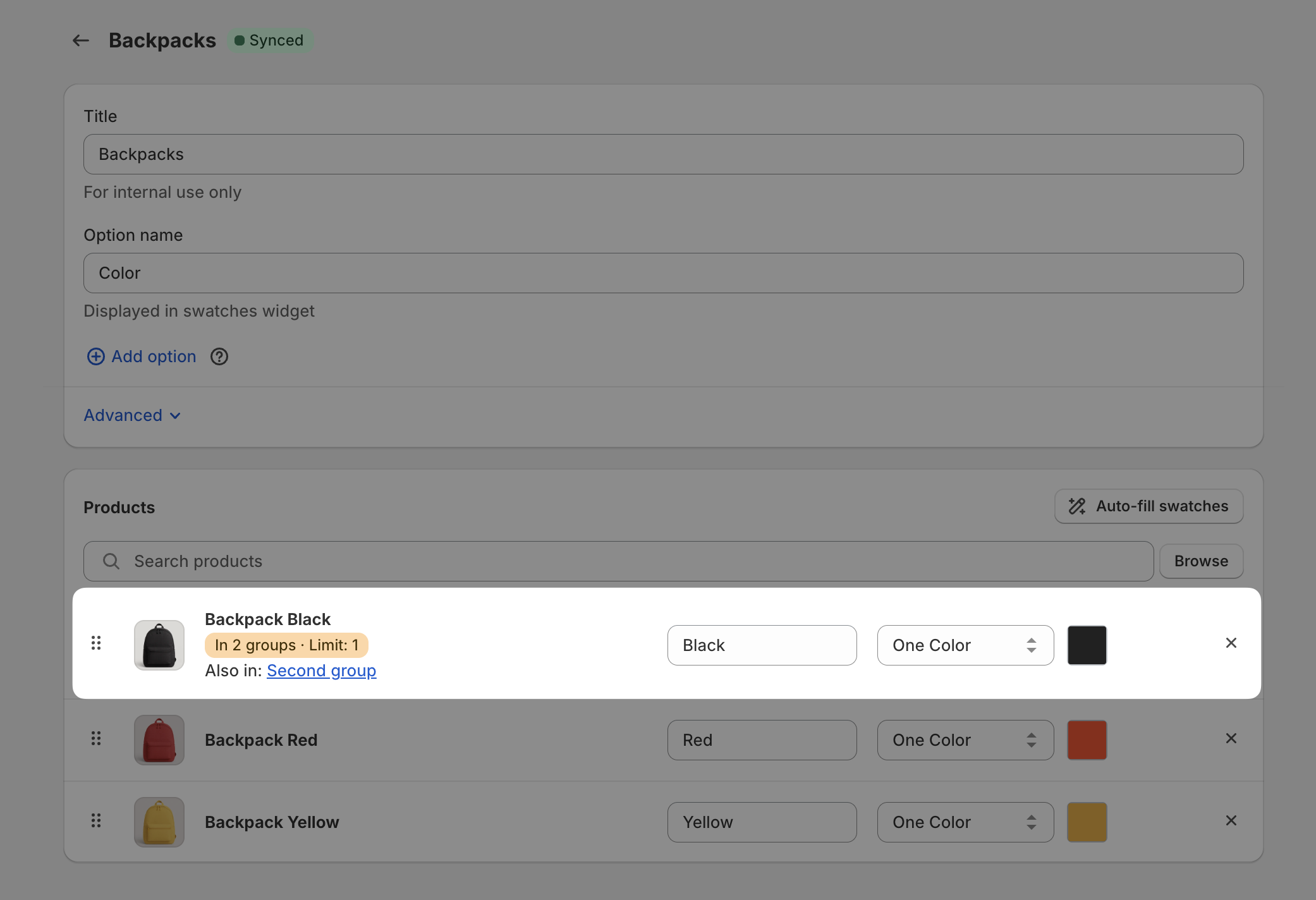
Repeat until the product is within the limit. Removing it from a group keeps it in Shopify and in its other groups.